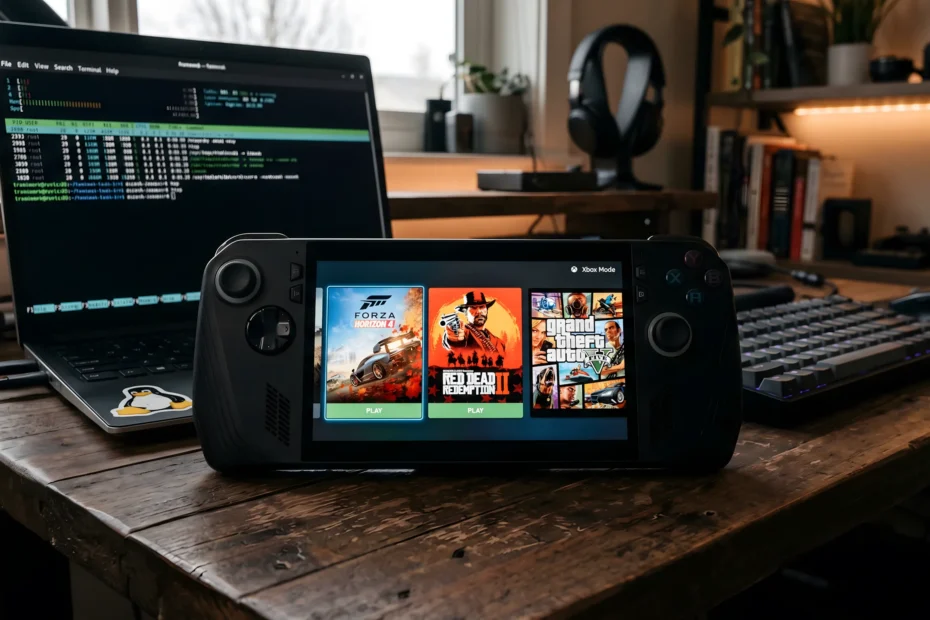
I’ve done something I genuinely thought I’d never do again: I installed Windows as the primary OS on my main handheld device, my ROG Ally X.
To be clear, my desktop and laptop remain dedicated Linux workstations. I still use CachyOS as my daily driver on my desktop PC, which doubles as my gaming rig. I am a firm believer in FOSS and privacy, but when it became a choice between my principles and actually enjoying my library on the go, I hit a wall.
Until recently, I spent most of my gaming years in the Xbox ecosystem. I have a library of titles tied to my Microsoft account including Forza Horizon 4, which I’ve had an urge to play again lately. Since I no longer own a physical Xbox console and my handheld was running Bazzite, I was effectively locked out of games I already owned.
The Moment I Was Won Over
Initially, I tried to be reasonable and dual-boot. I partitioned 500GB from my 2TB SSD to give Windows a small corner of the hardware. It was a faff; Windows, in its typical fashion, immediately took ownership of the bootloader and insisted on being the primary OS.
However, during that brief experiment, I discovered that the new “Xbox Mode”, the evolution of the full-screen experience Microsoft has finally properly released actually worked. I was navigating the device with a gamepad, no desktop in sight, and for a fleeting moment, it felt like a real console experience. That brief taste of a functional, controller-friendly interface was enough to convince me: I needed to ditch the dual-boot headache and go all-in.
Compatibility vs. Pure Frames
I know that Linux can often offer better raw FPS, but for me, it isn’t a performance comparison. If a game is running well, it’s running well. I’m not going to notice five frames here or ten frames there in the heat of a race. As long as the game stays above 60 FPS and the 1% lows are stable, the overall peak FPS doesn’t matter to me.
The real issue is accessibility. I miss playing COD or GTA Online without jumping through hoops. By sticking strictly to Linux on a handheld, I was limiting my own fun just to avoid an OS I dislike. I realised I was shooting myself in the foot, so I formatted the device and committed to Windows for the portable.
The Rufus Struggle and the Pro Upgrade
The transition wasn’t smooth. I used Rufus to create a bootable USB, attempting to automate the setup to bypass the local account restrictions. It failed halfway through, leaving me with a bricked partition. I had to fire up a WinBoat Windows VM on my CachyOS desktop just to remake the Rufus stick properly.
Once installed, the device was a headless beast, no Wi-Fi drivers, no connectivity. Luckily, my dock has Ethernet, so I could get it online to pull updates. My first order of business? Buying a Windows 11 Pro licence. Most handhelds ship with Home, but if you’re serious about privacy, you need Group Policy Editor (GPEDIT) to actually shut down the telemetry data leaks.
The Update Gamble
With drivers installed, that optimised “Xbox Mode” was still missing. I had to brave the June 2026 update (KB5095093). I’d heard the bad press about this build breaking various components, but since I was working with a fresh install, I took the gamble. It paid off. The update unlocked the handheld-specific settings I was looking for, including the much-improved controller-driven navigation.
I’ve avoided signing into Windows with a Microsoft account globally; I only signed into the Store and the Xbox app. It’s still a data leak, but it’s a necessary trade-off to access the library I’ve already paid for over the years.
The Console Experience
One of the biggest surprises was the peripheral support. I still have an Xbox controller, and pairing it to Windows is a night-and-day difference compared to Linux. On my CachyOS rig, I usually rely on an EasySMX X15 with its dedicated dongle because it’s just easier for Linux to handle, but on Windows, the native Xbox controller support is flawless.
When I plug the handheld into the dock, it becomes an “Xbox-lite” console with the added bonus of my Steam library. I set the TV output to 1080p to match the handheld’s internal screen so my game settings work for both without adjustment. It works flawlessly.
The only thing I truly miss from Bazzite is the ability to instantly suspend and resume a game. Windows still hasn’t mastered a proper low-power “Sleep” for gaming. Using Hibernate has been my best workaround; it’s slower than Bazzite’s resume, but it’s the only way to reliably save your spot without draining the battery.
Windows Pro Optimisation Guide
I don’t use automated de-bloating tools; they are often “black boxes” that can break systems in unpredictable ways. Instead, I prefer to do it manually. While I’ve tailored these steps for a handheld, they are essential for any Windows installation where privacy and performance are the priorities.
Phase 1: The Foundation (Using Rufus)
Before you even install Windows, you can kill several “features” at the source. When creating your bootable USB with Rufus, ensure you tick these options:
- Prevent Hardware Polling: Check the “TPM/RAM/Secure Boot Bypass” options. Even if your device is modern, this prevents Windows from constantly checking your hardware during every minor update.
- Force a Local Account: This is the only way to avoid being forced to sign in with a global Microsoft account for your entire OS profile.
- Kill Data Collection: Check the options to disable data collection and BitLocker. This stops Windows from encrypting your drive (which impacts speed) and prevents the initial “privacy” survey.
Phase 2: The Pro Tweaks (Group Policy)
Once Windows is installed, type gpedit.msc into your start menu and press Enter. This is the Group Policy Editor, and it allows you to change settings that Microsoft usually hides from “Home” users.
- Killing the Telemetry (Spying):
Navigate to:Computer Configuration > Administrative Templates > Windows Components > Data Collection and Preview Builds.
Find Allow Diagnostic Data, set it to Enabled, and in the dropdown menu, select “Diagnostic data off (not recommended)”. - Disabling Consumer Bloat:
Navigate to:Computer Configuration > Administrative Templates > Windows Components > Cloud Content.
Find Turn off Microsoft consumer experiences and set it to Enabled. This stops Windows from auto-installing apps like TikTok or Instagram without your permission. - Silencing Windows AI & Recall:
Navigate to:Computer Configuration > Administrative Templates > Windows Components > Windows AI.
Set Allow Recall to be enabled to Disabled. Then, set Disable Click to Do and Disable Settings agentic search experience to Enabled. This kills the “Recall” screenshot feature and the AI that constanty “scrapes” your screen for data. - Fixing the Start Menu & Widgets:
Navigate to:Computer Configuration > Administrative Templates > Windows Components > Search.
Enable Do not allow web search and Don’t search the web or display web results. This stops Bing from cluttering your local file searches.
Then, navigate to the Widgets folder in the sidebar and set Allow Widgets to Disabled to stop the laggy “News and Interests” panel from appearing. - Gaming Performance (VBS and Game DVR):
Navigate to:Computer Configuration > Administrative Templates > System > Device Guard.
Set Turn On Virtualization Based Security to Disabled. This allows your CPU to focus on games rather than security-heavy background virtualisation.
Next, navigate toWindows Components > Windows Game Recording and Broadcastingand set it to Disabled to stop the OS from wasting power on background recording.
Phase 3: The Finishing Touches
These are manual adjustments made within the standard Windows menus or system tools.
- Network Optimization:
Go toSettings > Windows Update > Advanced Options > Delivery Optimization. Turn this OFF. Then, click Advanced options and set both Download and Upload bandwidth to 999 Mbps. This stops Windows from capping your download speeds and prevents your handheld from sharing updates with strangers on the internet. - The Bare Metal Tweak:
Typeoptionalfeatures.exeinto your start menu. Uncheck Virtual Machine Platform and Windows Hypervisor Platform. Restart your device. This removes the hidden background layers that slow down modern processors during gaming. - Disabling the Tracking Service:
TypeServices.mscinto your start menu. Find the service named Connected User Experiences and Telemetry. Right-click it, click Stop, then right-click again, go to Properties, and set the “Startup type” to Disabled. - Hibernation Over Sleep:
On a handheld, Windows “Sleep” is unreliable and often drains the battery in your bag. Always use Hibernate instead; it saves your exact game state to the SSD and completely shuts off the power. - Edge Lockdown:
Even if you use a faster, more private browser like Brave, Edge will still loiter in the background. Follow these steps to fully kill it:
- Open Microsoft Edge
- Click the three dots (…) in the top-right corner and select Settings.
- Navigate to System and performance in the left-hand sidebar.
- Under the System section, toggle OFF both:
- Startup boost
- Continue running background extensions and apps when Microsoft Edge is closed
The Result
The result is a handheld that feels surprisingly capable. My 10-year-old son watched me fire up FH4, and his jaw dropped at the fidelity compared to his Nintendo Switch.
Windows is still a bloated, telemetry-heavy mess at its core. But with enough manual intervention and the competitive pressure Valve has put on the market with Proton and SteamOS, Microsoft has finally been forced to make Windows work for handhelds.I’m still a Linux guy at heart, but for the sake of an unhindered portable library, consider this a temporary cease-fire.